Prerequisites
- The CLI installed — see Install.
- Interactive shell from container (Docker only) — see Run interactively.
- A model pulled.
geniex servedoes not auto-download models.
Start the server
Pull a model:bash
bash
http://127.0.0.1:18181 by default. Keep this terminal open and make requests from another one. Run geniex serve -h for all configurable options.
POST /v1/chat/completions
Creates a model response for a conversation. Supports LLM (text-only) and VLM (text + image or audio).LLM request
Example Value
Try it from Swagger UI
Openhttp://127.0.0.1:18181 in your browser to access the built-in Swagger UI.
Step 1. Expand the POST /v1/chat/completions endpoint to view the example request body and schema.
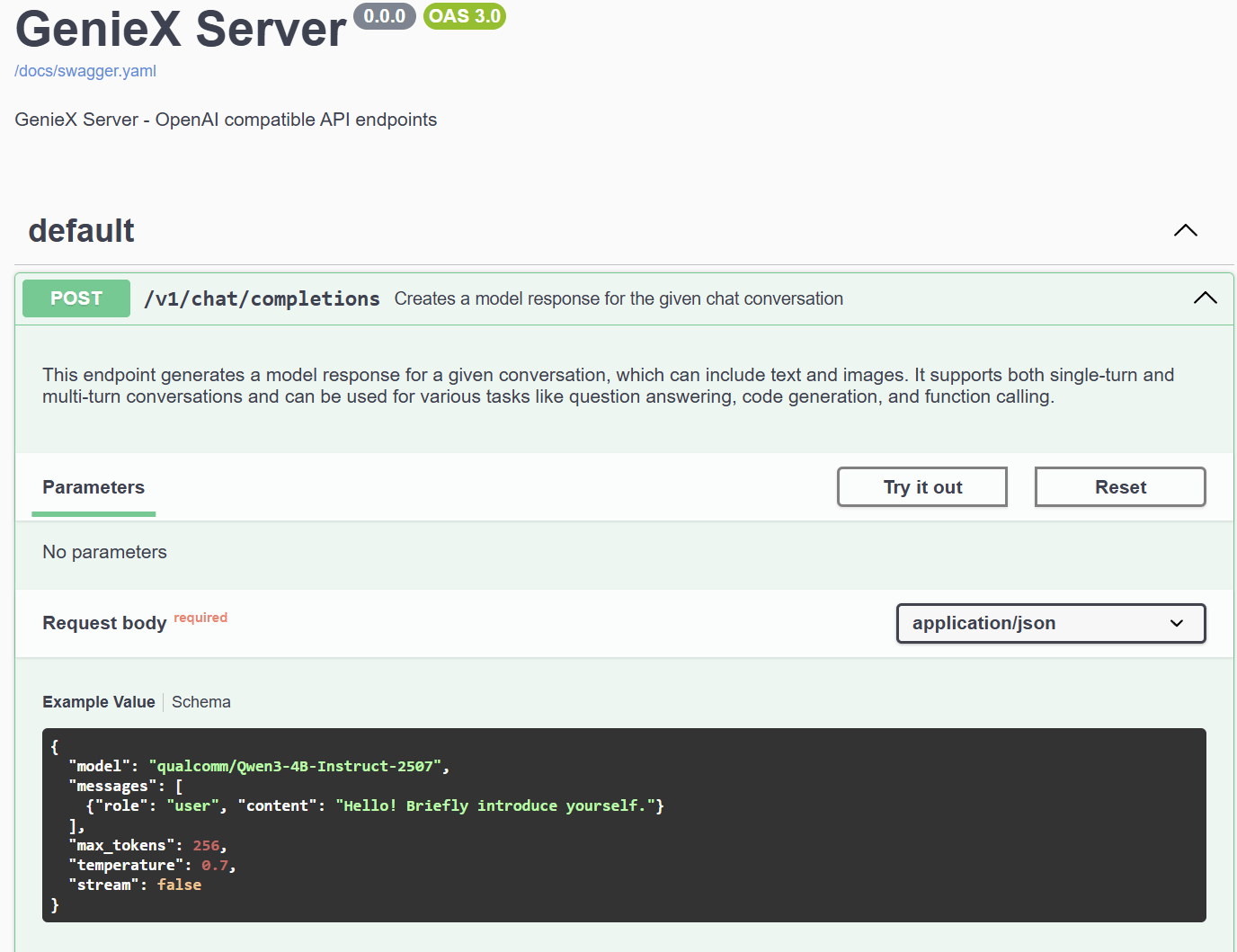
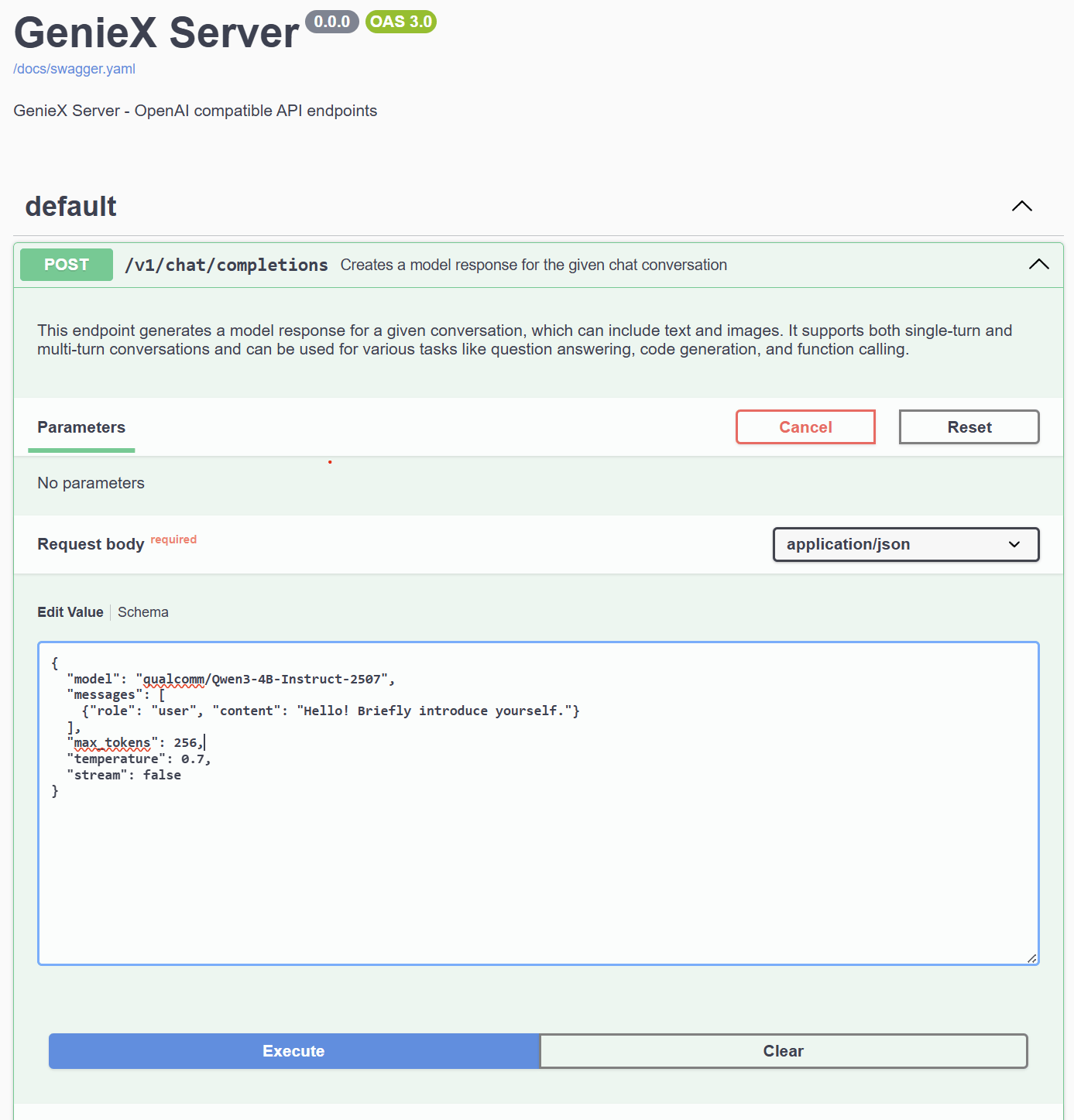
200 status with the model’s generated reply.
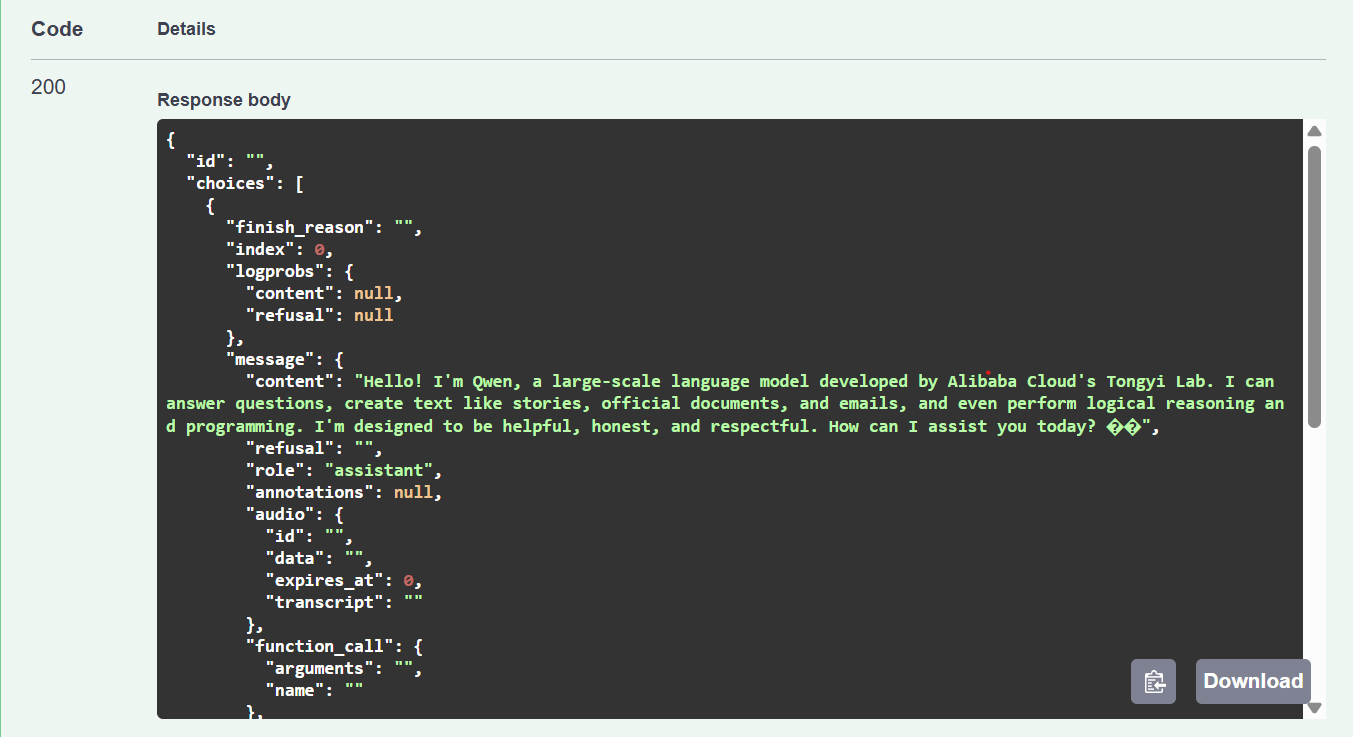
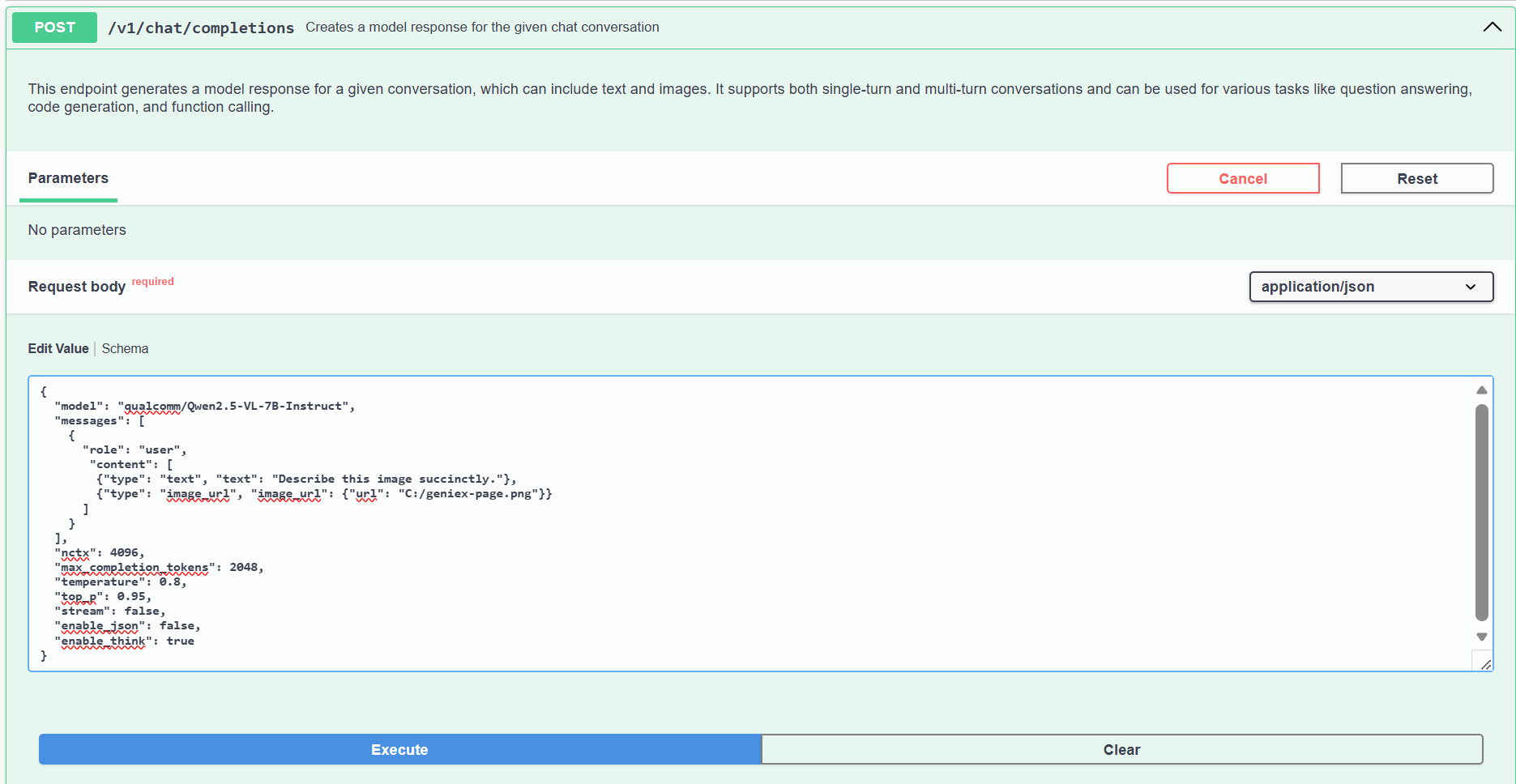
VLM request
A VLM accepts multimodal content parts alongside text. Useimage_url for images, and input_audio for audio on a model whose mmproj carries a conformer encoder (e.g. google/gemma-4-E2B-it-qat-q4_0-gguf). Both image_url.url and input_audio.data accept the same three formats:
Running in Docker? Local paths are resolved inside the container, not on your host. The install command already mounts
$PWD/data to /data — drop your images and audio files there and pass /data/cat.jpg / /data/jfk.wav. Alternatively, use an HTTP URL or base64 data URL to skip the filesystem entirely.image_url and input_audio parts. Pull an audio-capable model and grab a sample clip:
openai client:
--compute npu, Snapdragon X Elite):
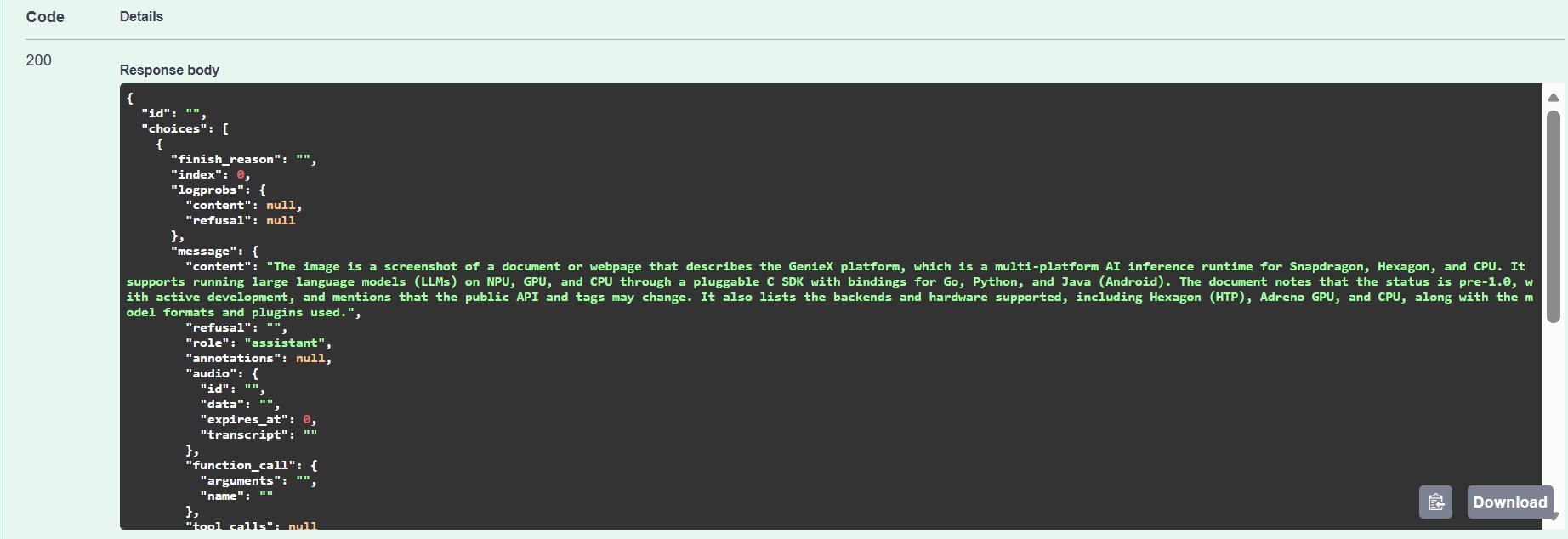
POST /v1/completions
Generates a raw continuation ofprompt with no chat template applied — the prompt reaches the model verbatim. Use this for clients that build the full prompt themselves, such as editor fill-in-the-middle (FIM) code autocompletion: put the model’s FIM tokens directly in prompt. LLM models only.
Example Value
choices[0].text is the raw completion, ready to insert at the cursor. stream, stop, echo and the sampler knobs (temperature, top_p, top_k, min_p, repetition_penalty, seed) work as on /v1/chat/completions; suffix is not supported — encode the suffix with the model’s FIM tokens inside prompt instead.
Python client (OpenAI SDK)
Because the server speaks the OpenAI protocol, you can point the officialopenai Python client at the local endpoint and reuse any existing OpenAI code. Install with pip install openai, then create a client:
python
client. Replace the model value with a model you have already pulled. The optional :<precision> suffix (e.g. Q4_0, Q4_K_M, Q8_0) selects a quantization variant — Q4_0 is recommended for llama.cpp on Hexagon NPU. See Precisions (Quantizations) Supported.
Streaming
Print each delta as it arrives:python
Chat completion (non-streaming)
Single request, single response, no streaming — the standard OpenAIchat.completions.create shape. The enable_think=False extra parameter turns off Qwen3’s default <think>…</think> reasoning prefix so the reply content stays clean.
python
Separating reasoning (reasoning_content)
By default a thinking model leaves its chain-of-thought inline inmessage.content (<think>…</think>), mixed in with the final reply. Pass reasoning_format="deepseek" to make the server move the chain-of-thought into the OpenAI-standard message.reasoning_content field, leaving content clean.
reasoning_format is not the same as enable_think: enable_think=False makes the model not produce a chain-of-thought at all, while reasoning_format="deepseek" lets it think as usual but moves the thinking out of content. Values are none (default, kept inline) and deepseek / deepseek-legacy / auto (all separate). It applies to tool-call requests too, streaming included: the thinking block is separated before the reply is scanned for a tool call.python
delta.reasoning_content deltas and the final reply as delta.content.
Tool calling
Function/tool calling uses the standard OpenAItools schema. The server extracts the tool call from the model’s generated text (<tool_call>…</tool_call> tags or a fenced ```json block) and re-emits it as OpenAI tool_calls. The flow works with VLMs too — the model can look at an image, decide what to search for, and call a tool.
The example below walks through a two-step agentic loop with qualcomm/Qwen3-VL-4B-Instruct: (1) the VLM identifies a landmark from a photo and calls web_search, (2) you execute the search locally and feed the results back so the VLM writes a grounded reply.
Only one tool call per assistant turn is parsed — parallel tool calls in a single response are not supported.
Two Qwen3-VL specifics for reliable tool calls:
- Prime the model with a system message that spells out the
<tool_call>…</tool_call>shape (Qwen3-VL’s chat template does not enforce it as strongly as Qwen3’s text-only template). - On the follow-up turn, drop
tools=and drop the image content frommessages— this stops the VLM from re-invoking the tool and avoids re-running the vision encoder on the same image.
pip install ddgs — DuckDuckGo, no API key required), then:
python
Other endpoints
GET /v1/models— list available models.GET /v1/models/{model}— get info about a specific model.
Was this page helpful?