> ## Documentation Index
> Fetch the complete documentation index at: https://geniex.aihub.qualcomm.com/llms.txt
> Use this file to discover all available pages before exploring further.
# Local server
> Run an OpenAI-compatible HTTP API on localhost backed by Snapdragon NPU/GPU/CPU acceleration.
GenieX includes a built-in inference server that exposes an **OpenAI-compatible API**. Run models on-device and connect them to any application or framework that speaks the OpenAI protocol — agentic frameworks like **LangChain**, AI-native apps like **OpenClaw**, or your own code. No cloud dependency.
## **Prerequisites**
* The CLI installed — see [Install](/en/run/cli/install).
* Interactive shell from container (Docker only) — see [Run interactively](/en/run/linux/install#run-interactively).
* A model pulled. `geniex serve` does **not** auto-download models.
## **Start the server**
Pull a model:
```bash bash theme={"dark"}
geniex pull ai-hub-models/Qwen3-4B-Instruct-2507
```
Start the server:
```bash bash theme={"dark"}
geniex serve
```
The server runs on `http://127.0.0.1:18181` by default. Keep this terminal open and make requests from another one. Run `geniex serve -h` for all configurable options.
## **POST /v1/chat/completions**
Creates a model response for a conversation. Supports LLM (text-only) and VLM (image + text).
### **LLM request**
```json Example Value theme={"dark"}
{
"model": "ai-hub-models/Qwen3-4B-Instruct-2507",
"messages": [
{"role": "user", "content": "Hello! Briefly introduce yourself."}
],
"max_tokens": 256,
"temperature": 0.7,
"stream": false
}
```
### **Try it from Swagger UI**
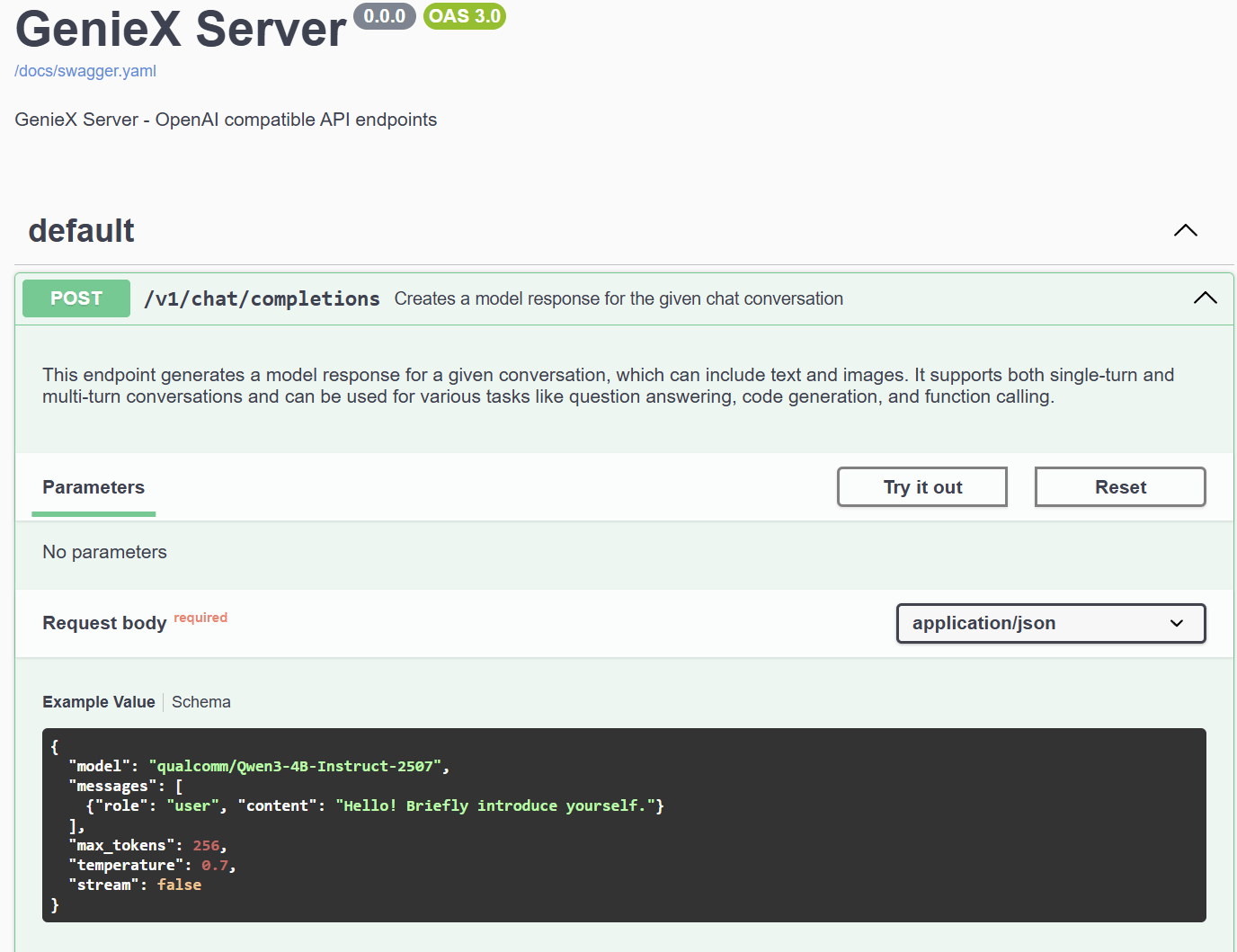
Open `http://127.0.0.1:18181` in your browser to access the built-in Swagger UI.
**Step 1.** Expand the `POST /v1/chat/completions` endpoint to view the example request body and schema.
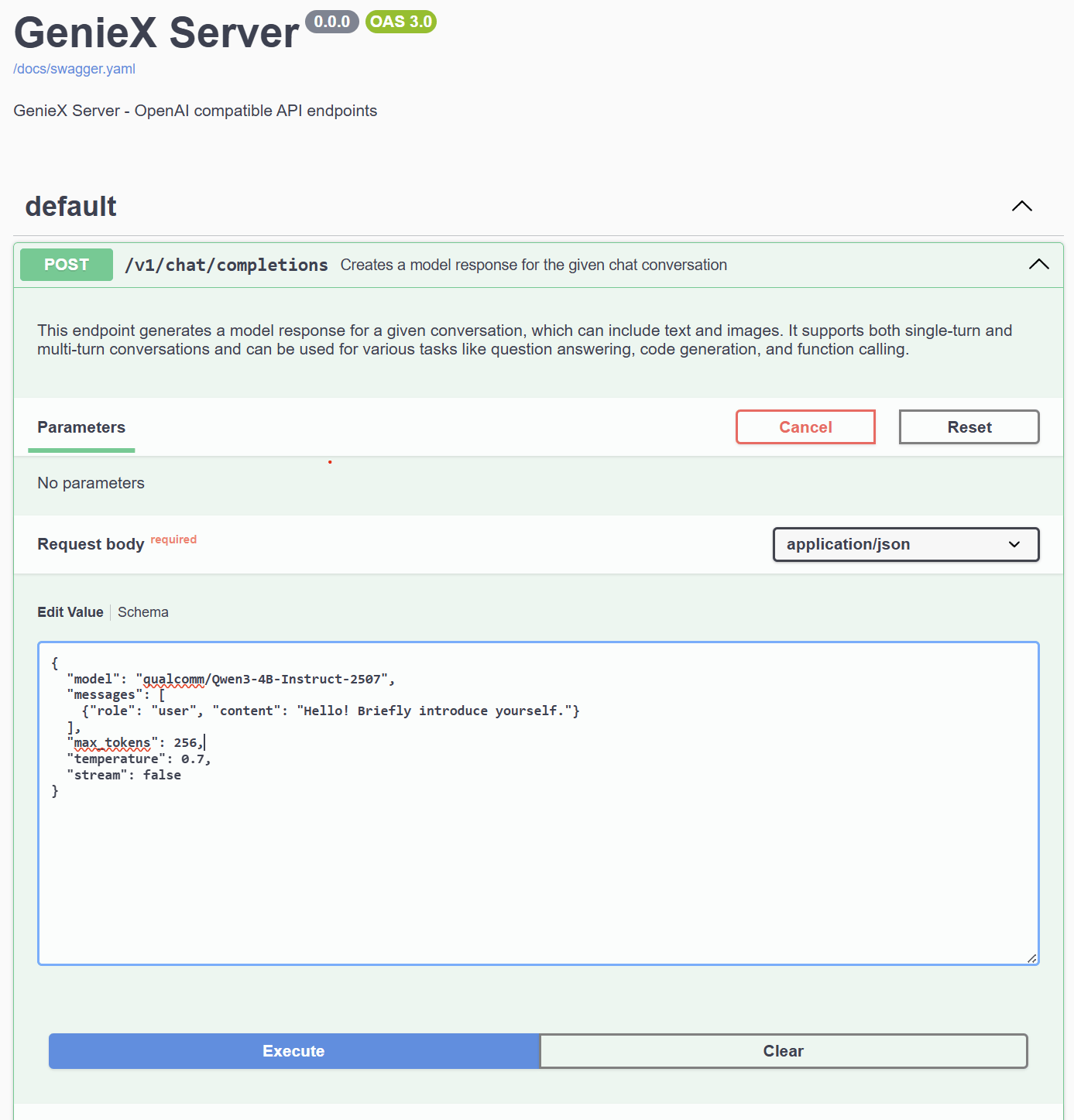
 **Step 2.** Click **Try it out**, edit the request body as needed, then click **Execute**.
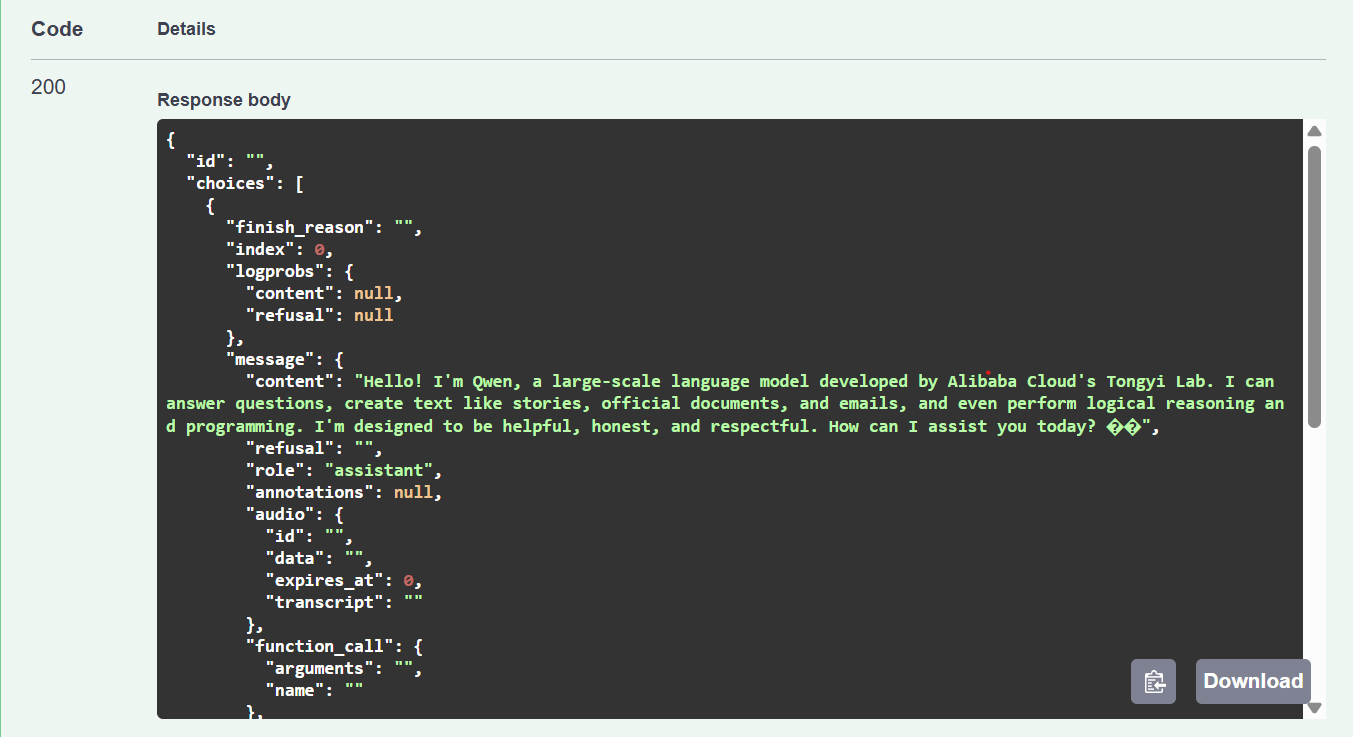
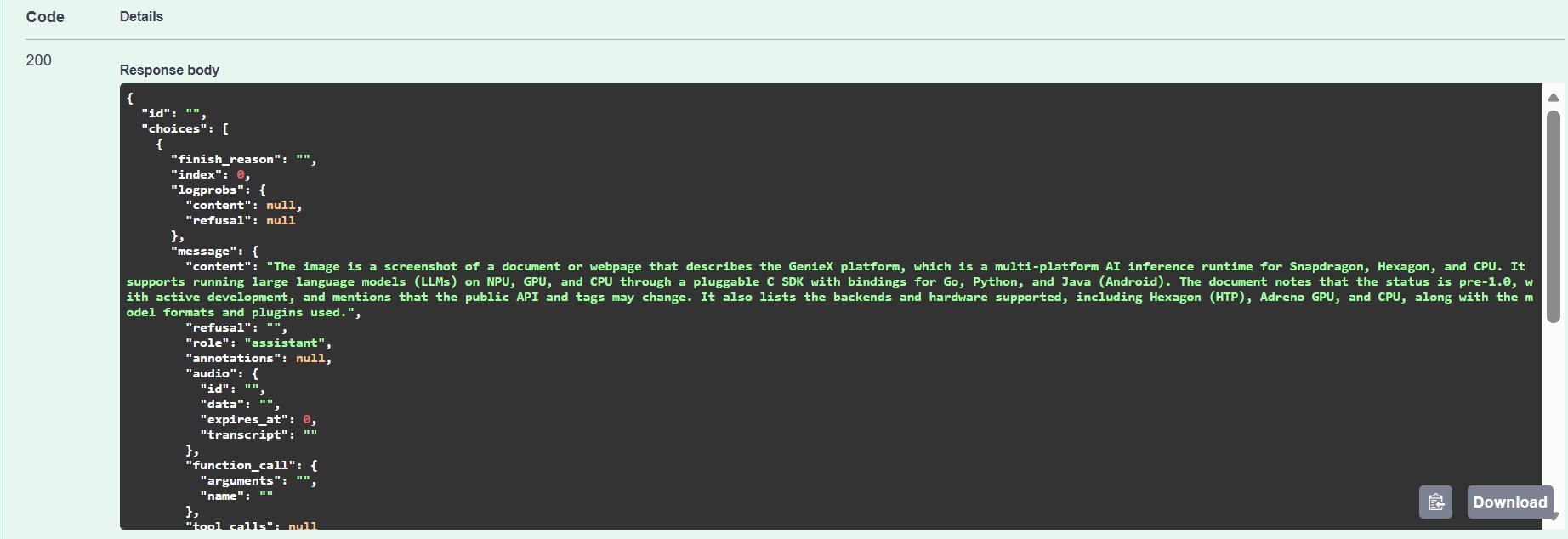
 **Step 3.** View the response — a `200` status with the model's generated reply.
 ### **VLM request**
`image_url.url` accepts three formats:
| Format | Example |
| -------------------------------------------------- | --------------------------------------------------------------- |
| Local file path (the `file://` prefix is optional) | `C:/Users/Username/Pictures/photo.jpg`, `file:///tmp/photo.jpg` |
| HTTP / HTTPS URL — fetched by the server | `https://example.com/image.jpg` |
| Base64 data URL — inline image bytes | `data:image/png;base64,iVBORw0KGgo...` |
**Running in Docker?** Local paths are resolved **inside the container**, not on your host. The install command already mounts `$PWD/data` to `/data` — drop your images there and pass `/data/cat.jpg`. Alternatively, use an HTTP URL or base64 data URL to skip the filesystem entirely.
```json Example Value theme={"dark"}
{
"model": "ai-hub-models/Qwen2.5-VL-7B-Instruct",
"messages": [
{
"role": "user",
"content": [
{"type": "text", "text": "Describe this image succinctly."},
{"type": "image_url", "image_url": {"url": ""}}
]
}
]
}
```
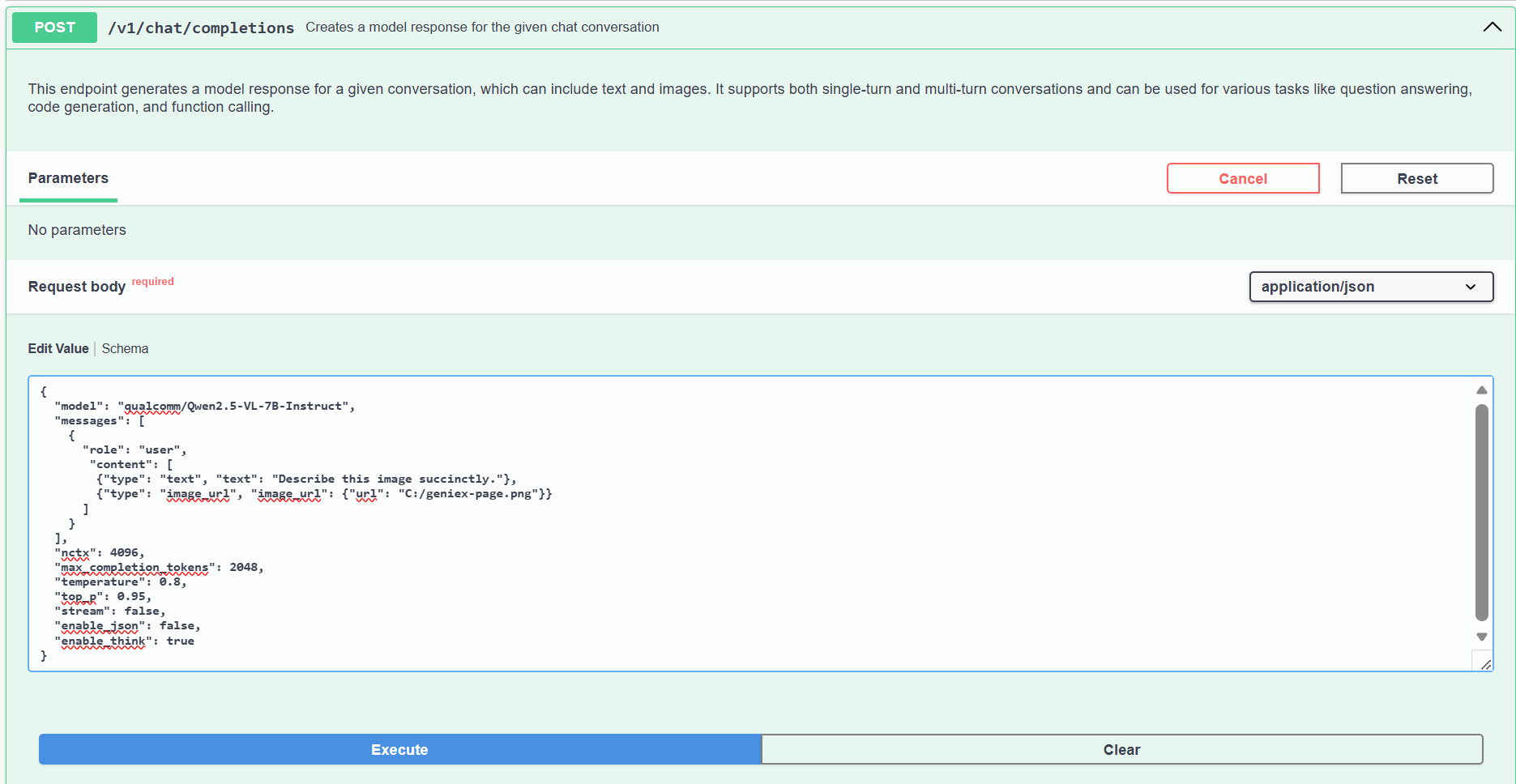
In Swagger UI, replace the request body with this VLM payload, point `image_url.url` to a local image, then click **Execute**.
### **VLM request**
`image_url.url` accepts three formats:
| Format | Example |
| -------------------------------------------------- | --------------------------------------------------------------- |
| Local file path (the `file://` prefix is optional) | `C:/Users/Username/Pictures/photo.jpg`, `file:///tmp/photo.jpg` |
| HTTP / HTTPS URL — fetched by the server | `https://example.com/image.jpg` |
| Base64 data URL — inline image bytes | `data:image/png;base64,iVBORw0KGgo...` |
**Running in Docker?** Local paths are resolved **inside the container**, not on your host. The install command already mounts `$PWD/data` to `/data` — drop your images there and pass `/data/cat.jpg`. Alternatively, use an HTTP URL or base64 data URL to skip the filesystem entirely.
```json Example Value theme={"dark"}
{
"model": "ai-hub-models/Qwen2.5-VL-7B-Instruct",
"messages": [
{
"role": "user",
"content": [
{"type": "text", "text": "Describe this image succinctly."},
{"type": "image_url", "image_url": {"url": ""}}
]
}
]
}
```
In Swagger UI, replace the request body with this VLM payload, point `image_url.url` to a local image, then click **Execute**.
 ## **Python client (OpenAI SDK)**
Because the server speaks the OpenAI protocol, you can point the official `openai` Python client at the local endpoint and reuse any existing OpenAI code. Install with `pip install openai`, then:
```python python theme={"dark"}
from openai import OpenAI
client = OpenAI(
base_url="http://127.0.0.1:18181/v1",
api_key="geniex", # any non-empty string; the server does not check it
)
stream = client.chat.completions.create(
model="unsloth/Qwen3-4B-GGUF:Q4_0", # org/repo[:precision] — Q4_0 has the best Hexagon NPU support
messages=[
{"role": "user", "content": "Hello! Briefly introduce yourself."},
],
max_tokens=256,
temperature=0.7,
stream=True,
)
for chunk in stream:
delta = chunk.choices[0].delta.content
if delta:
print(delta, end="", flush=True)
print()
```
Replace the `model` value with a model you have already pulled. The optional `:` suffix selects a precision (quantization) variant (e.g. `Q4_0`, `Q4_K_M`, `Q8_0`) — `Q4_0` is recommended for llama.cpp on Hexagon NPU. See [Precisions (Quantizations) Supported](/en/models/supported#precisions-quantizations-supported).
## **Other endpoints**
* `GET /v1/models` — list available models.
* `GET /v1/models/{model}` — get info about a specific model.
## **Python client (OpenAI SDK)**
Because the server speaks the OpenAI protocol, you can point the official `openai` Python client at the local endpoint and reuse any existing OpenAI code. Install with `pip install openai`, then:
```python python theme={"dark"}
from openai import OpenAI
client = OpenAI(
base_url="http://127.0.0.1:18181/v1",
api_key="geniex", # any non-empty string; the server does not check it
)
stream = client.chat.completions.create(
model="unsloth/Qwen3-4B-GGUF:Q4_0", # org/repo[:precision] — Q4_0 has the best Hexagon NPU support
messages=[
{"role": "user", "content": "Hello! Briefly introduce yourself."},
],
max_tokens=256,
temperature=0.7,
stream=True,
)
for chunk in stream:
delta = chunk.choices[0].delta.content
if delta:
print(delta, end="", flush=True)
print()
```
Replace the `model` value with a model you have already pulled. The optional `:` suffix selects a precision (quantization) variant (e.g. `Q4_0`, `Q4_K_M`, `Q8_0`) — `Q4_0` is recommended for llama.cpp on Hexagon NPU. See [Precisions (Quantizations) Supported](/en/models/supported#precisions-quantizations-supported).
## **Other endpoints**
* `GET /v1/models` — list available models.
* `GET /v1/models/{model}` — get info about a specific model.